#90DaysOfDevops | Day 13
Day 13 -> Advance Git & GitHub for DevOps Engineers

Git Branching
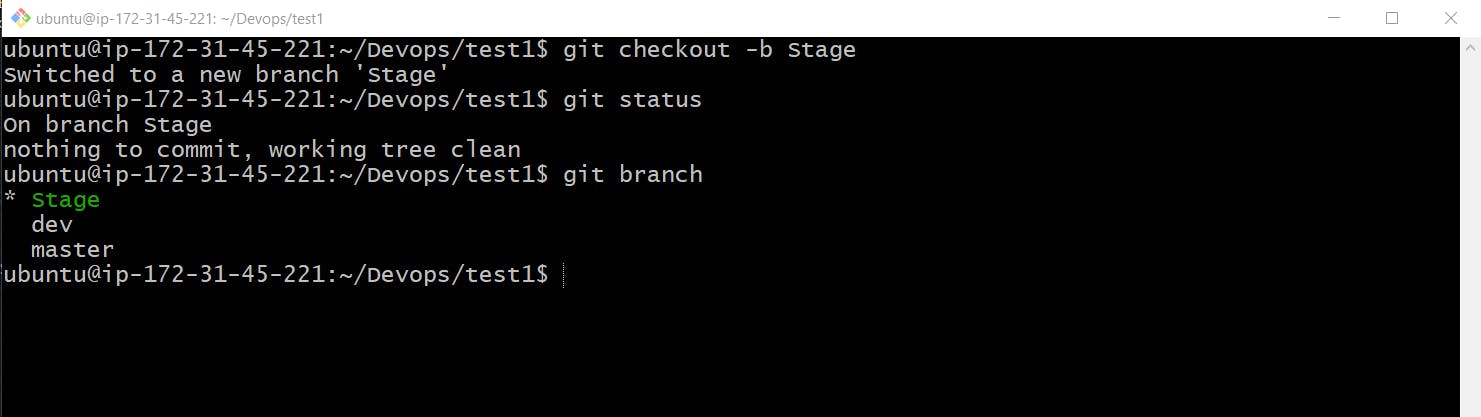
Branches are a core concept in Git, enabling isolated development work without affecting the main codebase. Each repository has a default branch (often main or master), but you can create multiple branches for different tasks. This way, you can work on new features, bug fixes, or experimental changes without disrupting the main project.
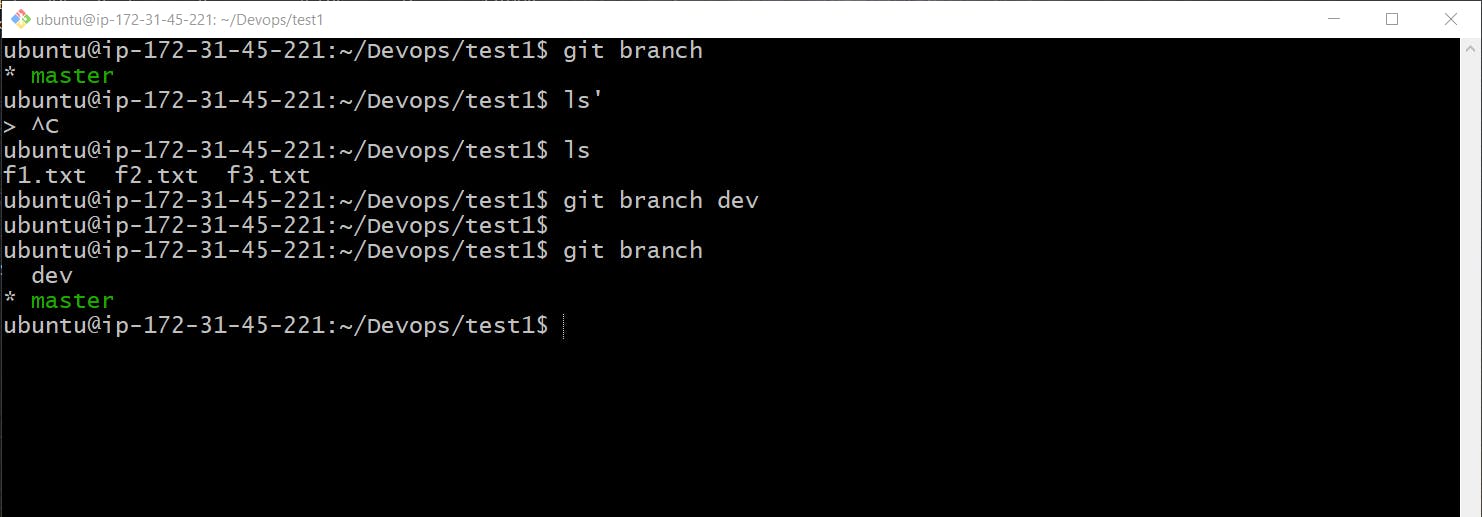
Creating a Branch: Use the
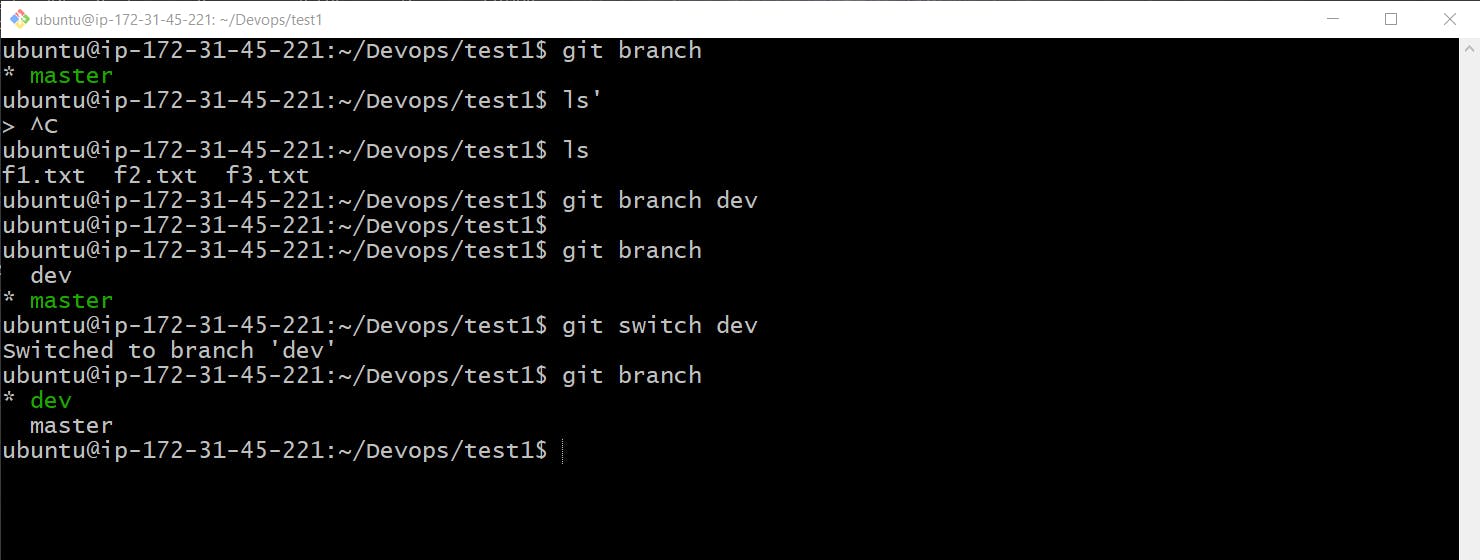
git branchcommand to create a new branch. For instance, to create a branch namedfeature, you would run:git branch featureSwitching to a Branch: Use
git checkoutto switch between branches:git checkout featureCreating and Switching: Combine these actions with the
-bflag:git checkout -b featureMerging a Branch: When you are done with your changes, you can merge your branch back into the main branch. First, switch to the main branch:
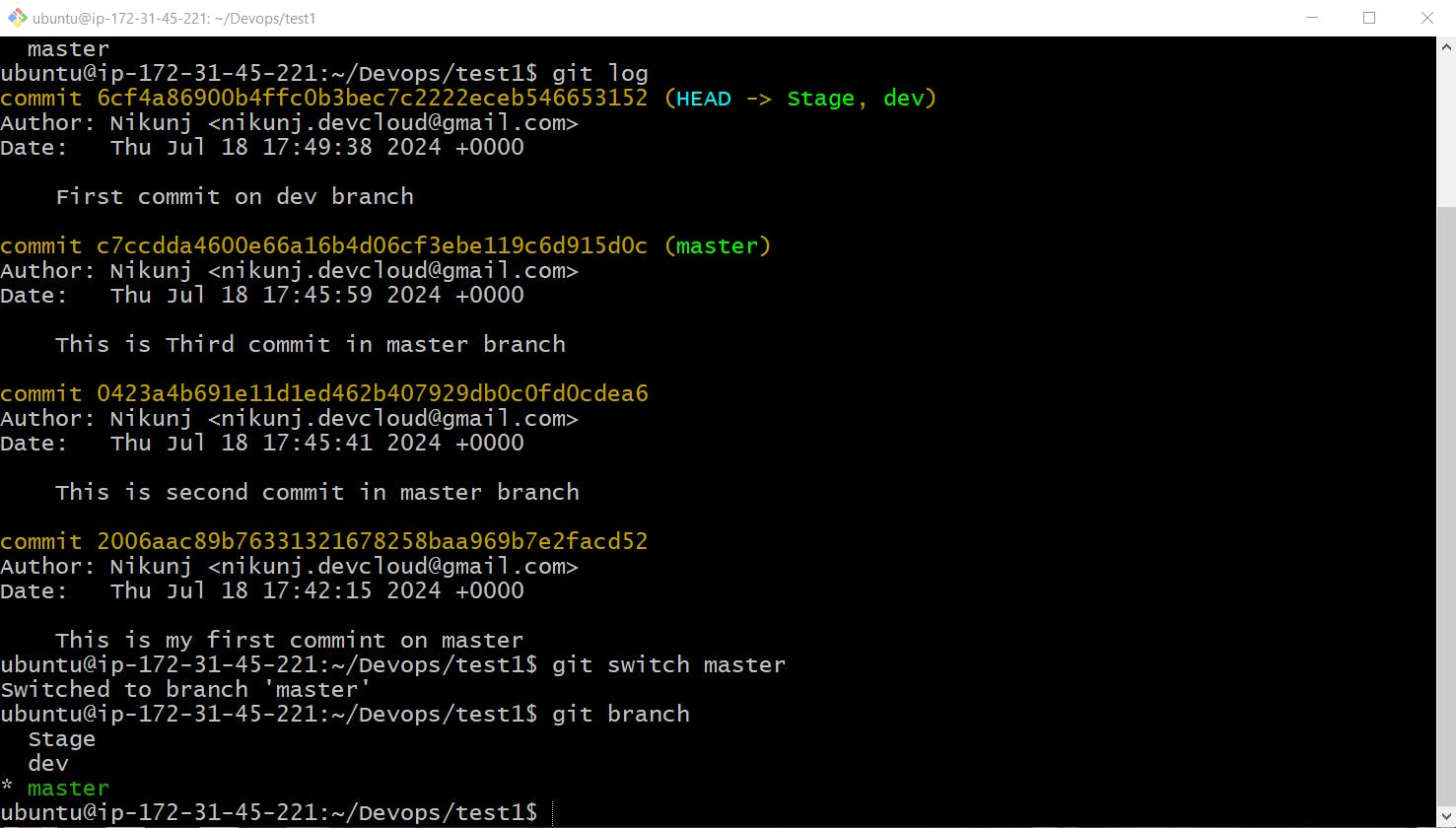
git checkout masterThen, merge the feature branch:
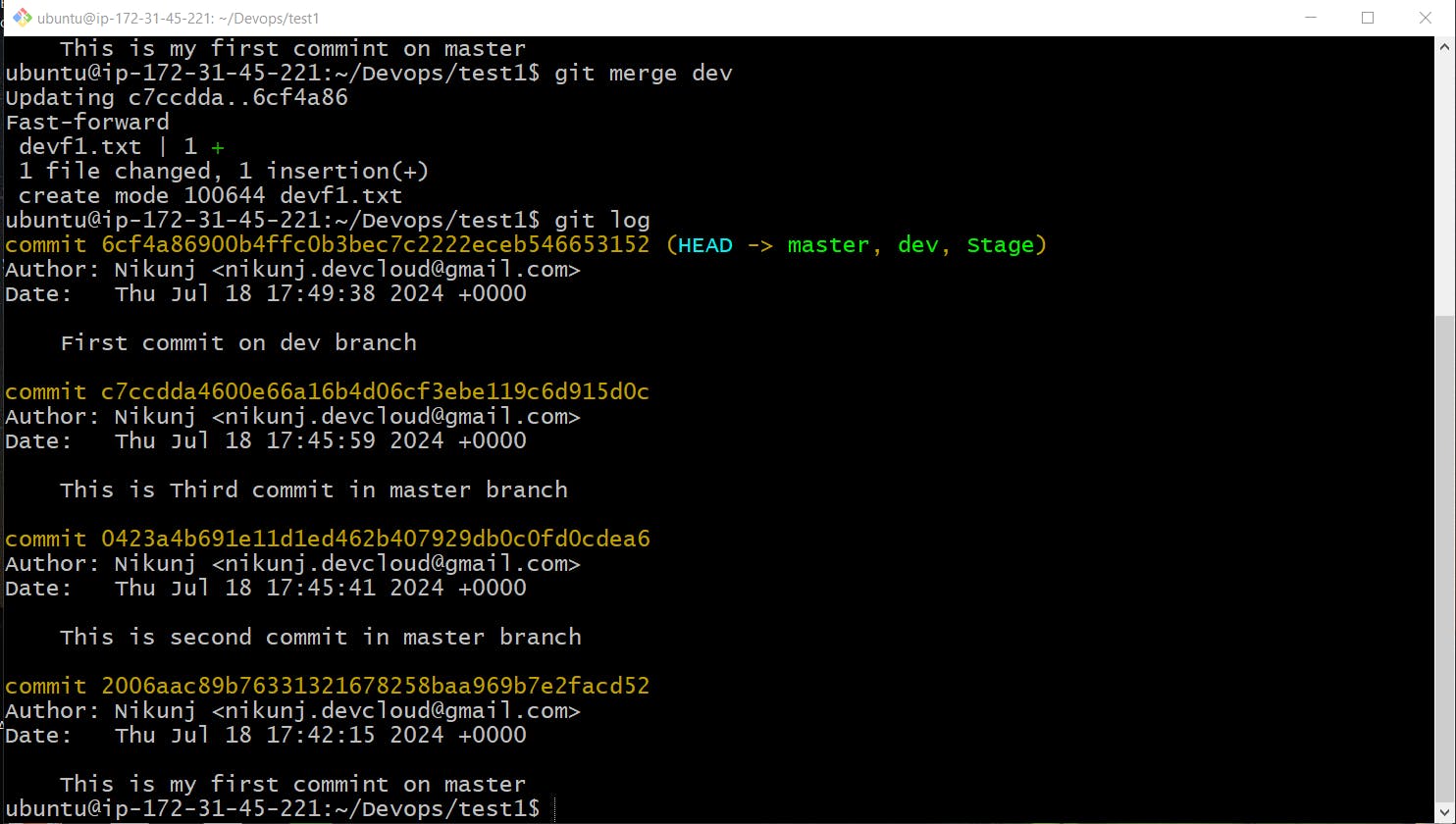
git merge feature
Branches are useful for organizing work on different aspects of your project, making it easier to track changes and collaborate with others.
Git Revert and Reset
Both git revert and git reset are commands used to undo changes, but they function differently:
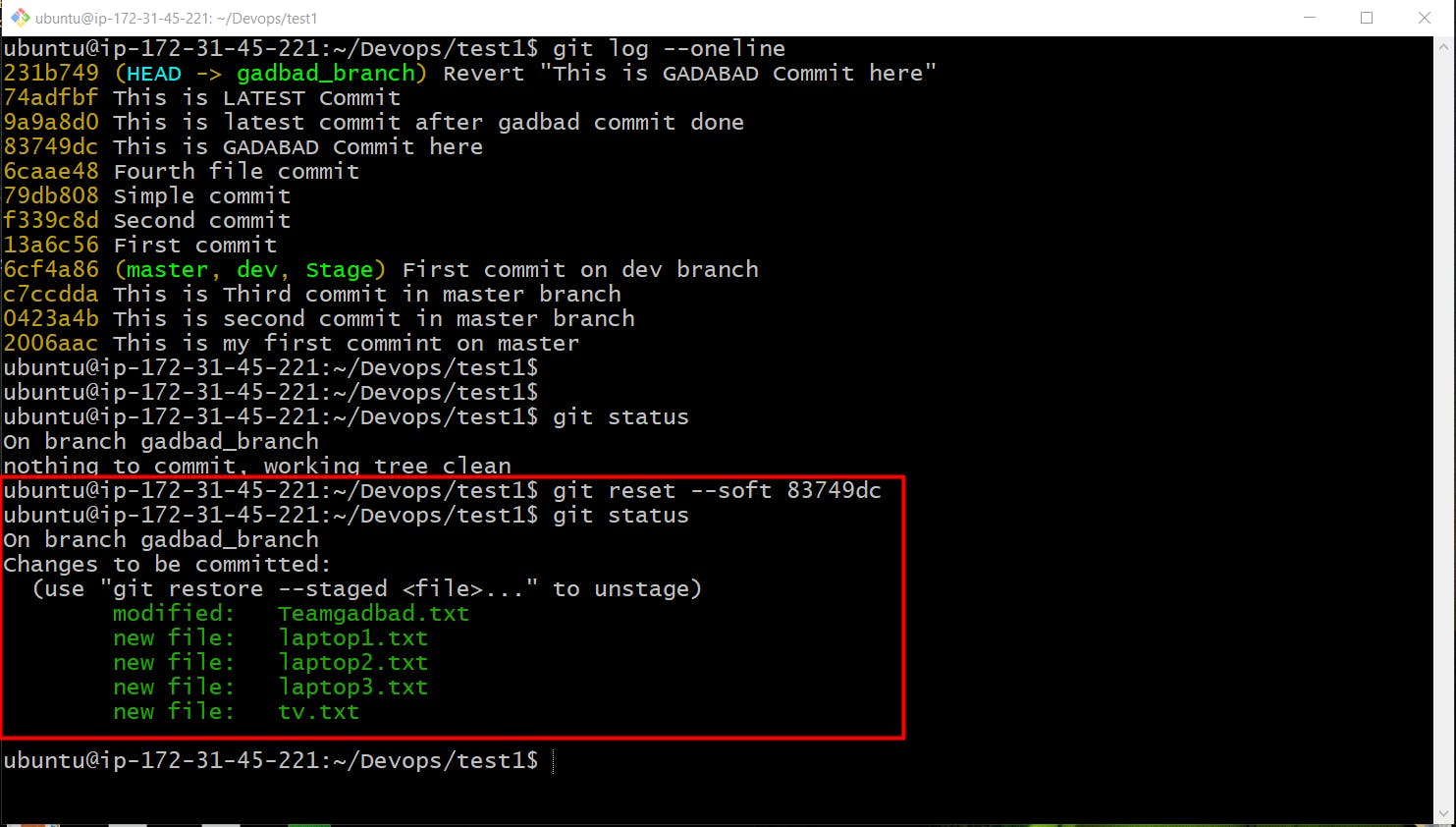
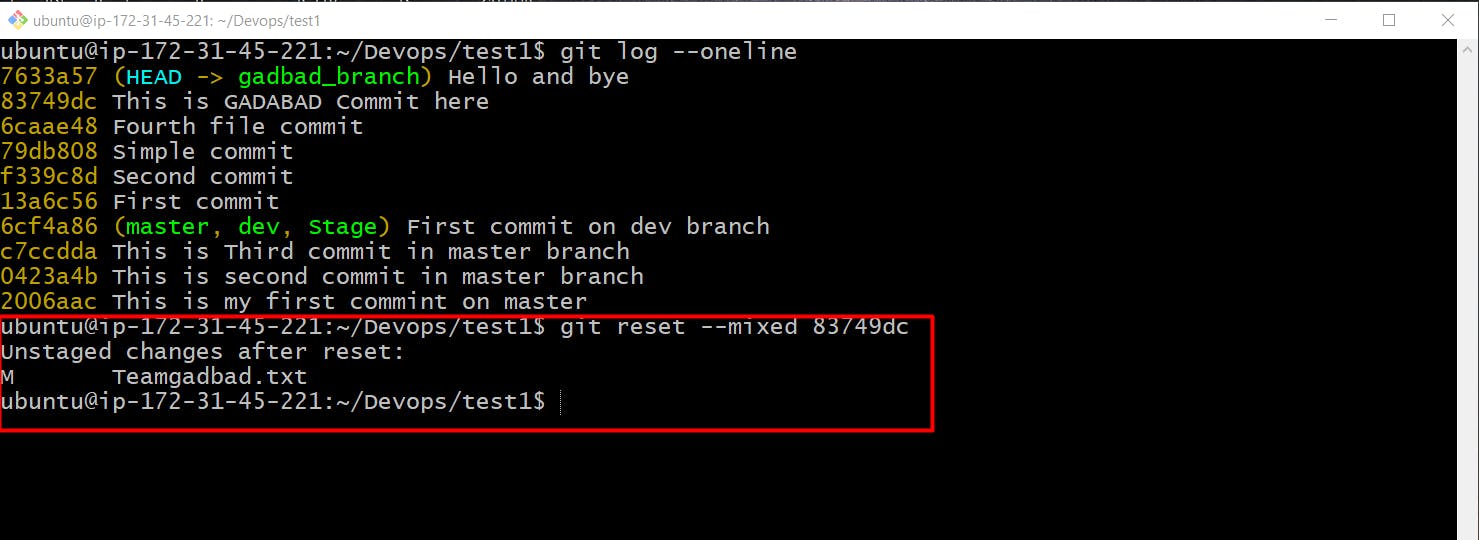
Git reset: This command moves the
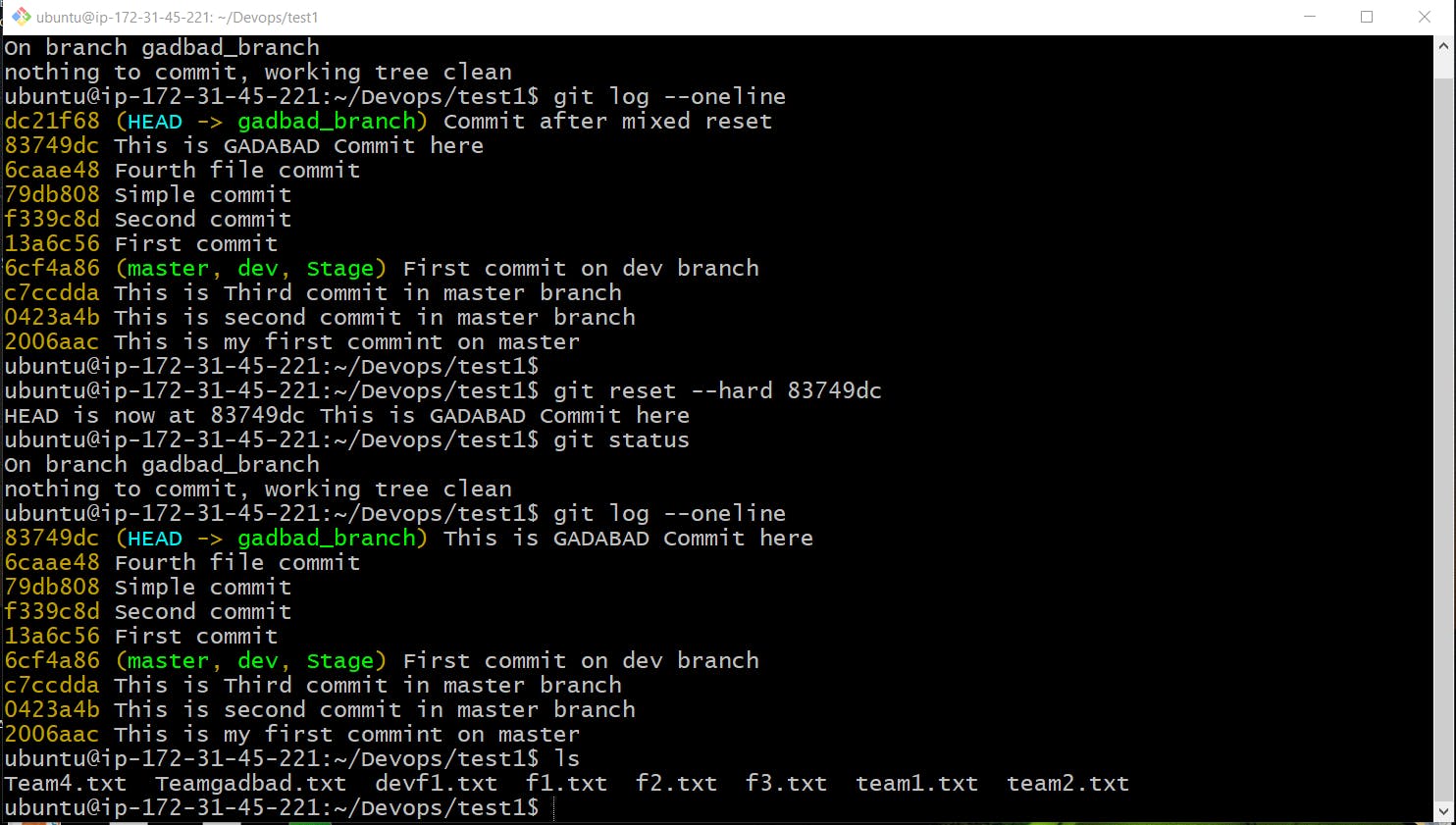
HEADpointer to a specified commit, effectively changing the commit history. It has three modes:--soft: Keeps changes in the working directory and staging area.--mixed: Keeps changes in the working directory but clears the staging area.--hard: Discards all changes, both in the working directory and the staging area.
Example of a hard reset:
git reset --hard <commit_hash>
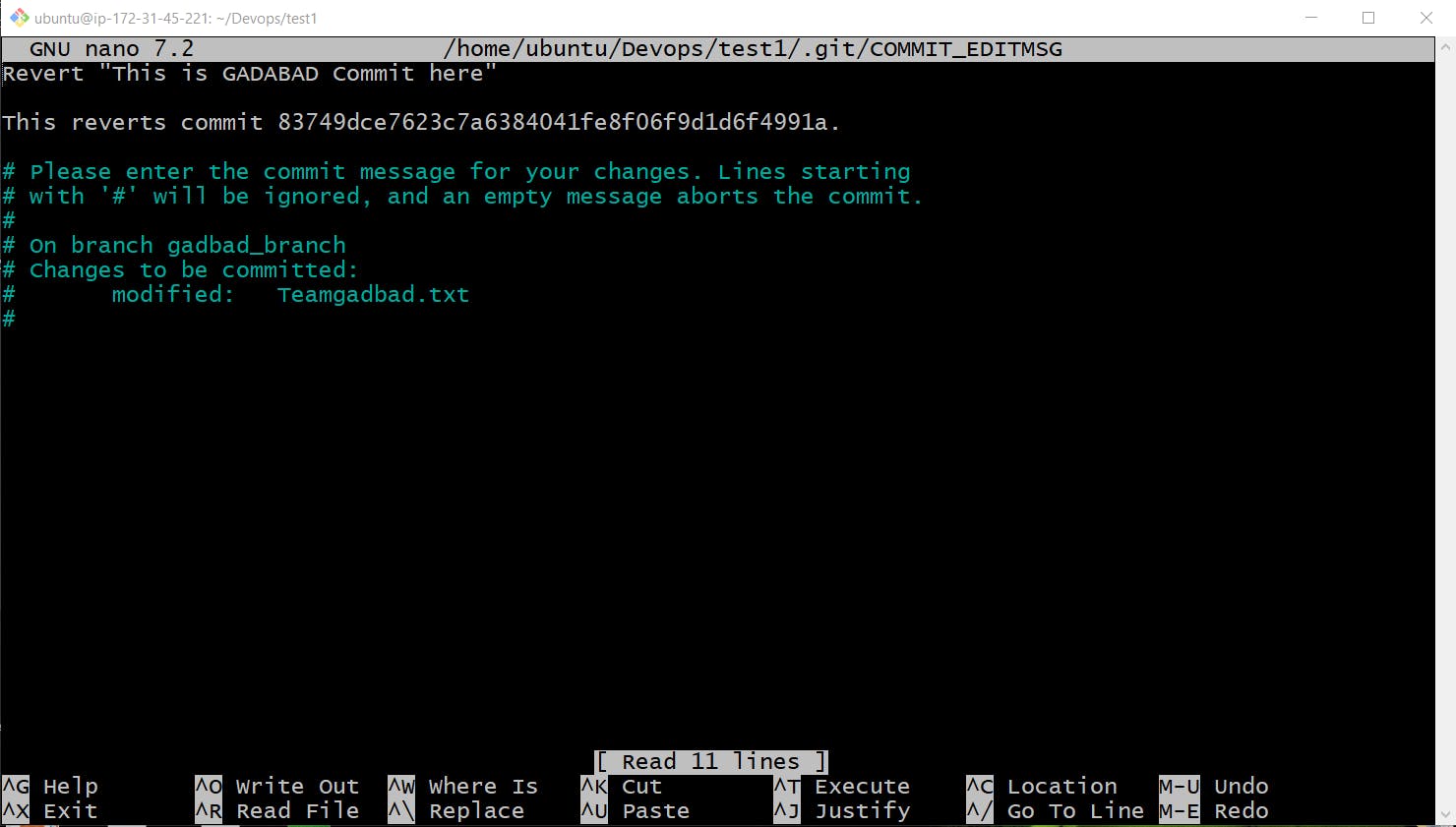
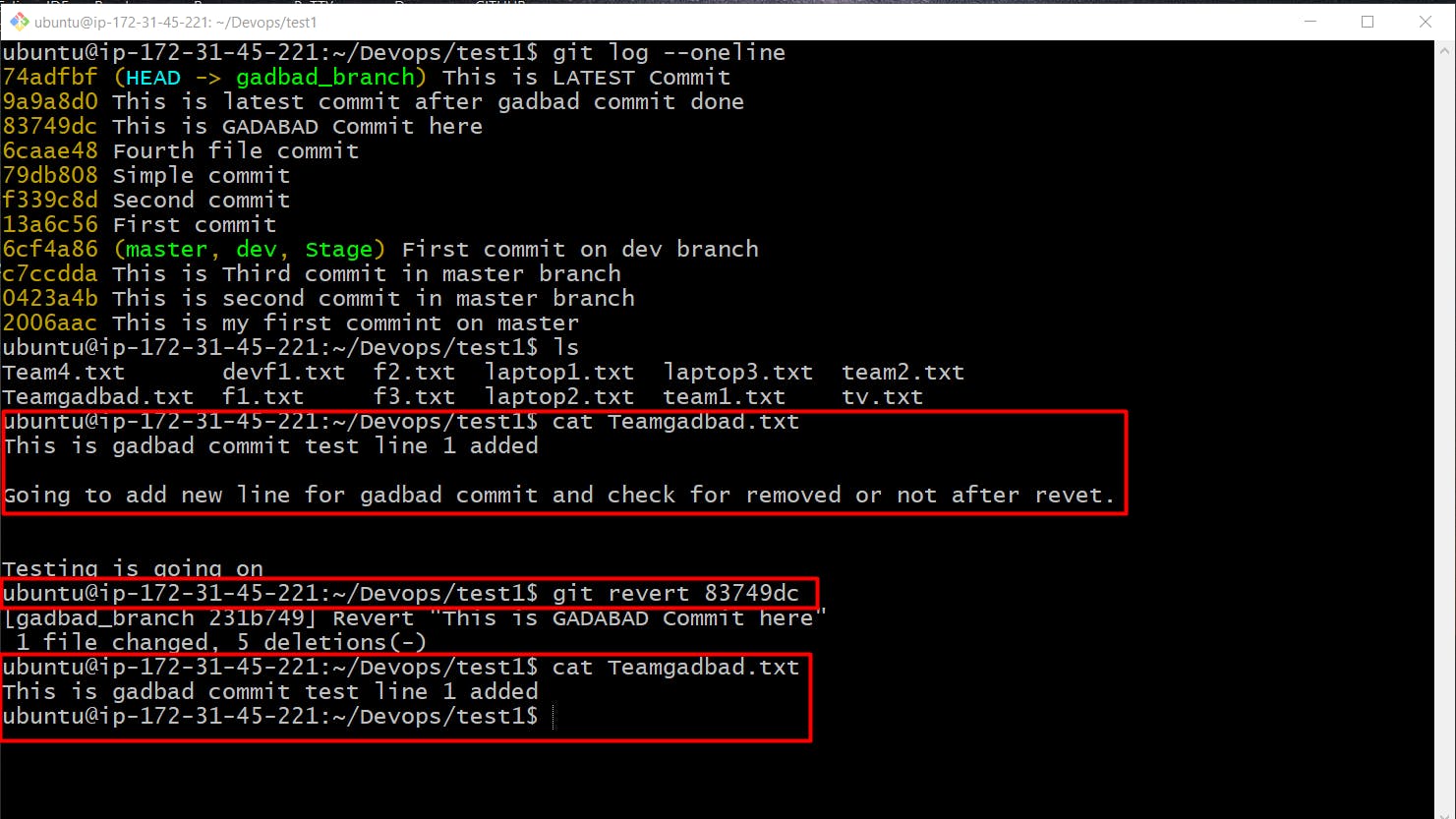
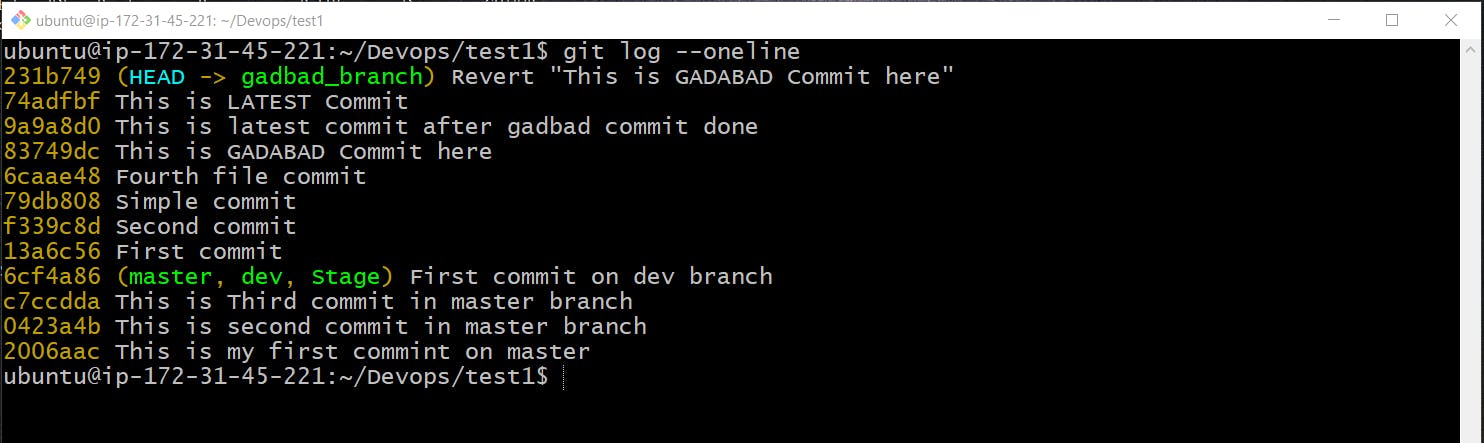
Git revert: This command creates a new commit that undoes the changes of a specified commit, preserving the commit history. It’s safer for collaborative environments since it doesn’t rewrite history.
Example:
git revert <commit_hash>
Git Rebase and Merge
Git Rebase and Git Merge are used to integrate changes from one branch to another:
Git Rebase: Rebase rewrites the commit history by moving the entire branch to a new base commit. It creates a linear history, which is cleaner and easier to understand.
              git checkout feature
              git rebase master
This command applies the changes from the
featurebranch on top of themasterbranch, making the history linear.
Git Merge: Merge combines the changes from one branch into another by creating a new merge commit. It preserves the commit history of both branches.
  git checkout master
  git merge feature
While rebase results in a cleaner history, merge is better for preserving the context of feature development.
Tasks
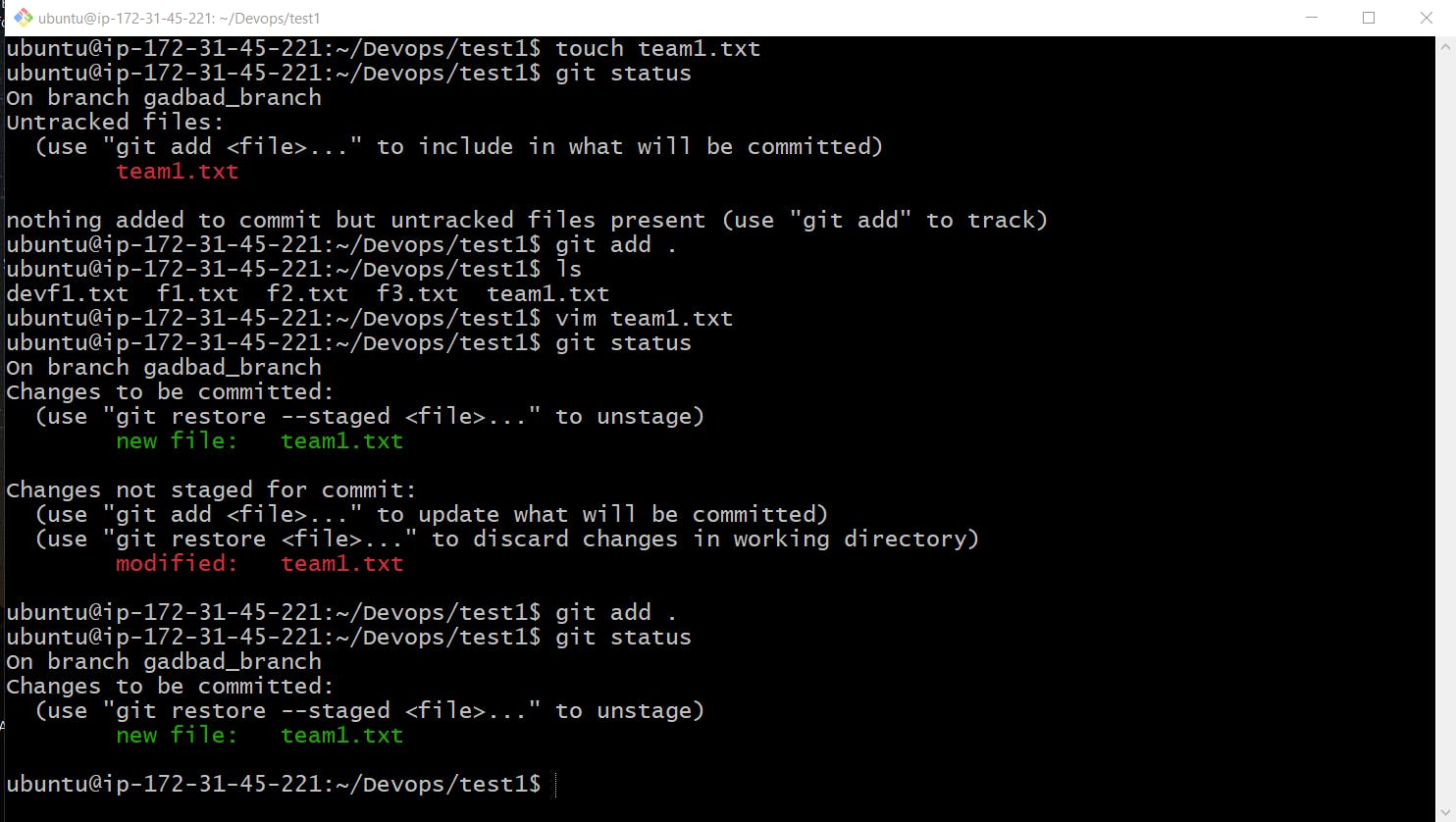
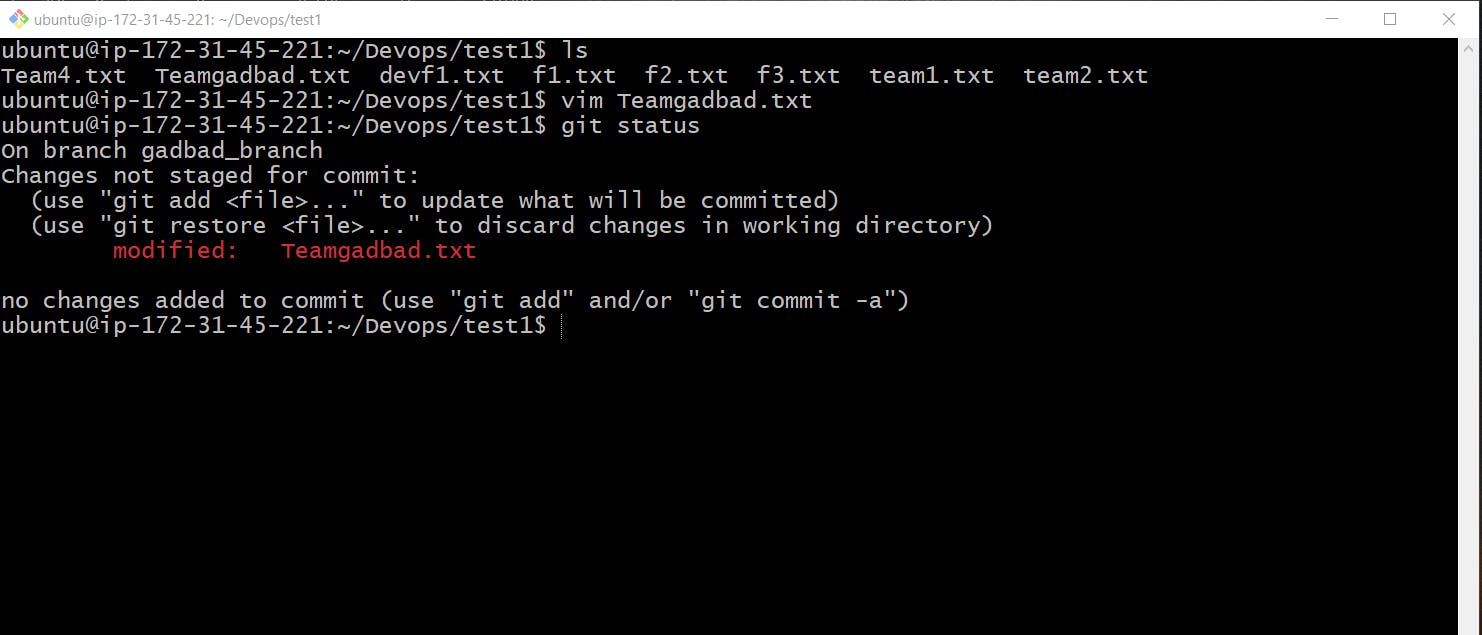
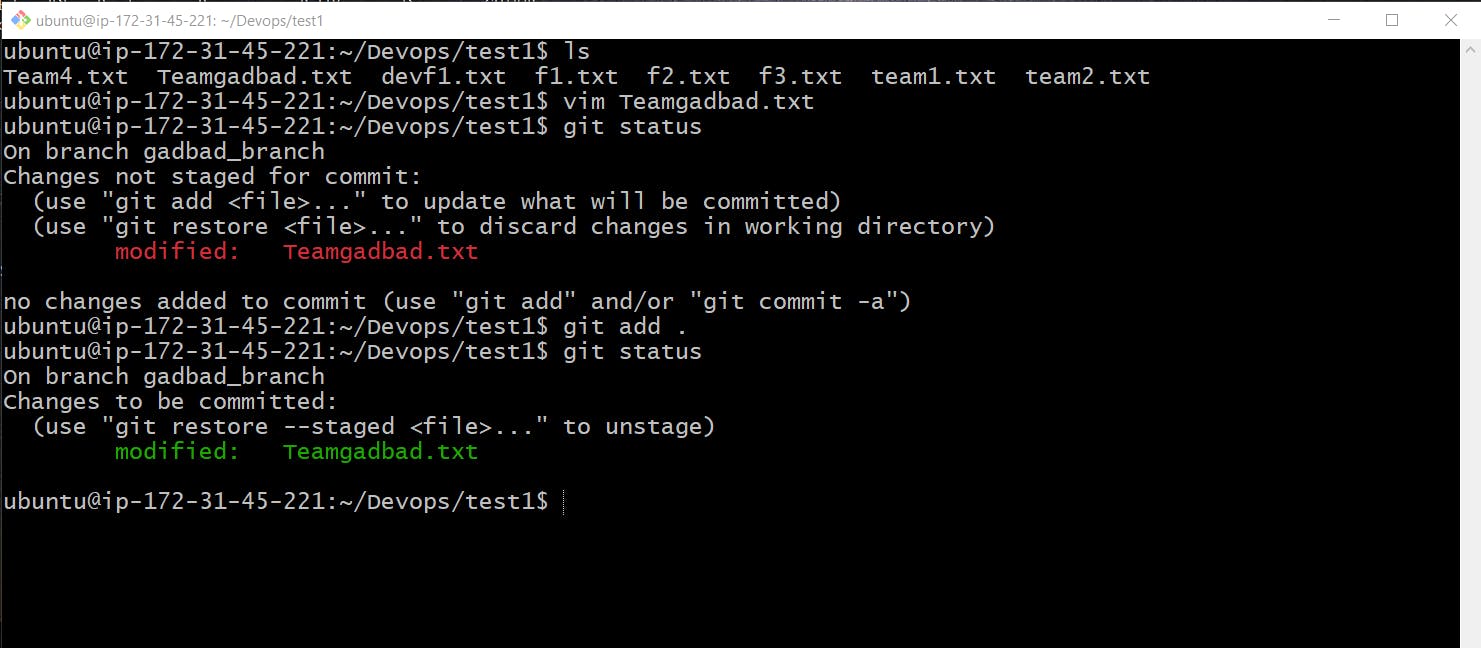
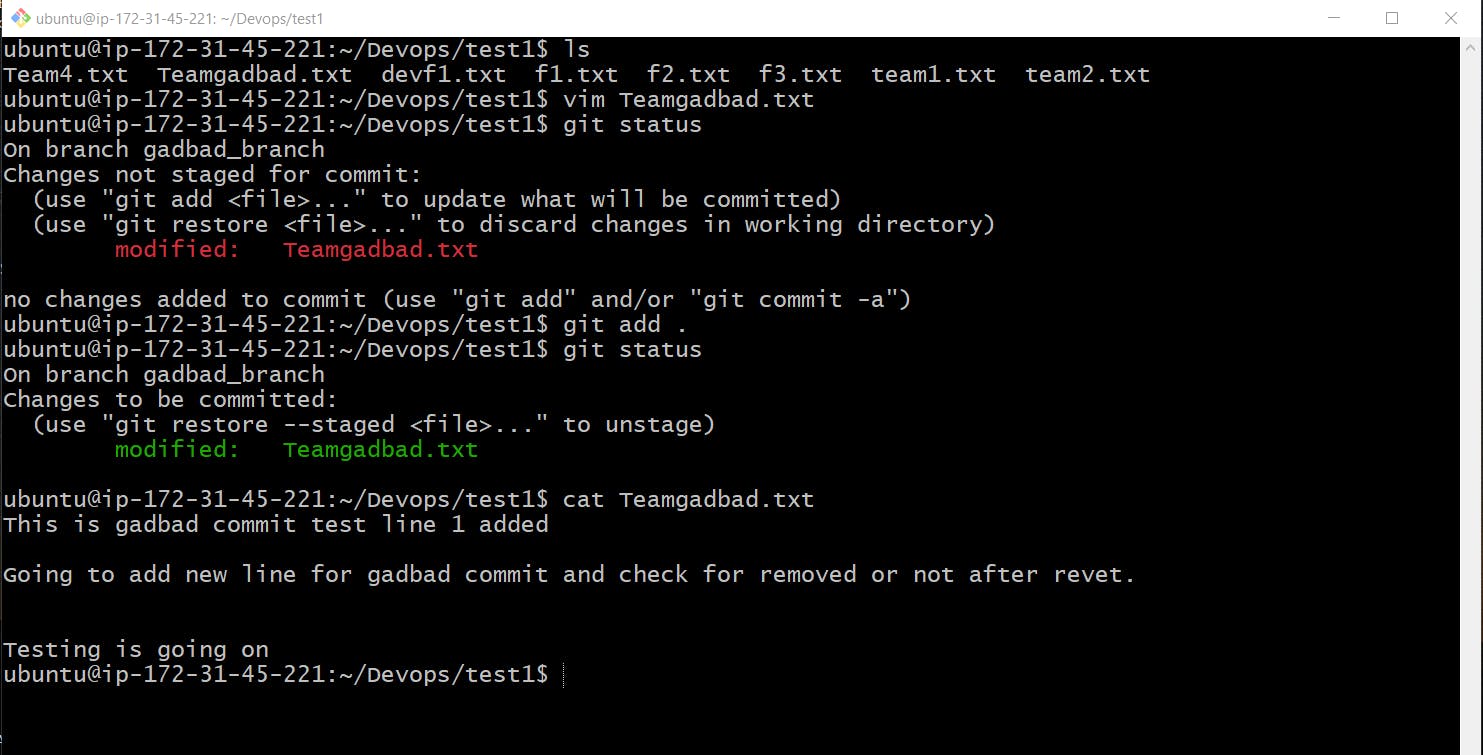
Task 1: Feature Development with Branches
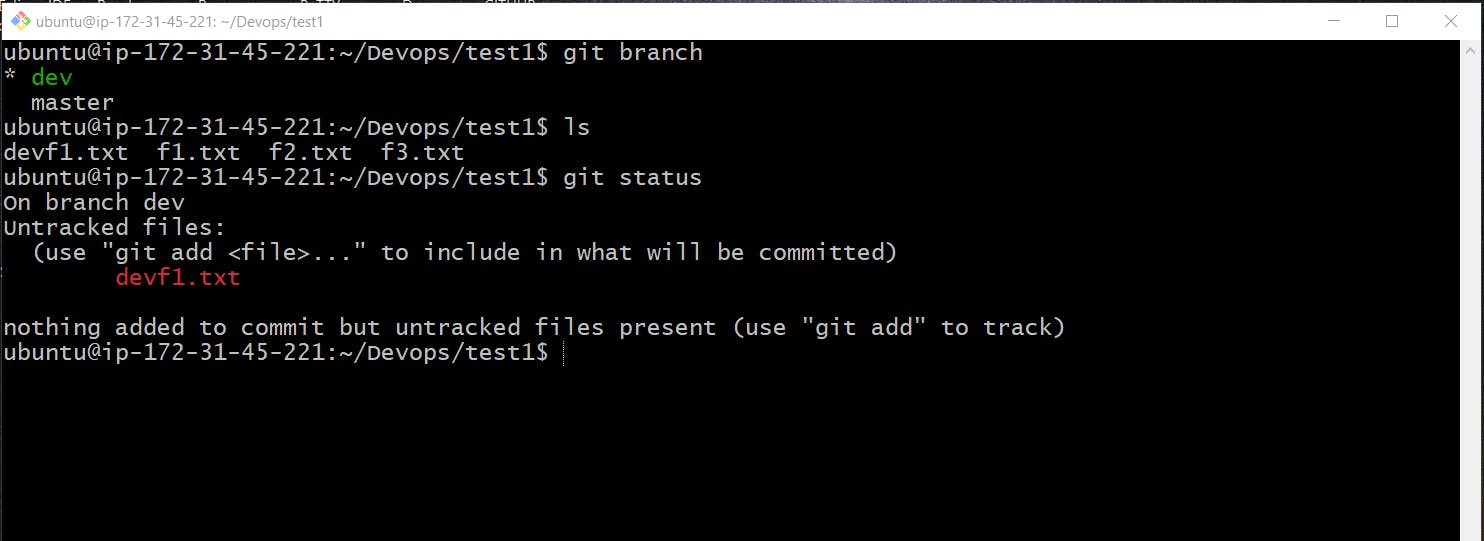
Create a Branch and Add a Feature:
Add a text file called
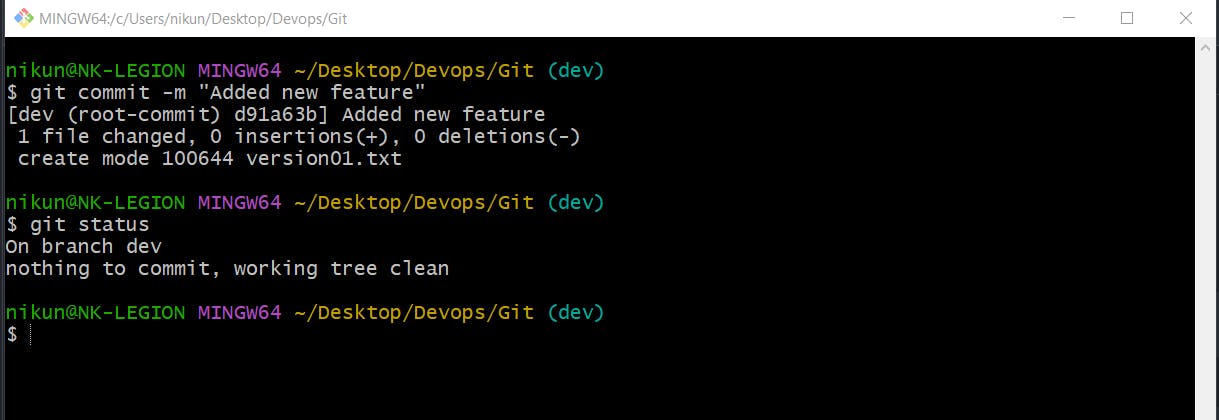
version01.txtinside theDevops/Git/directory with “This is the first feature of our application” written inside.Create a new branch from
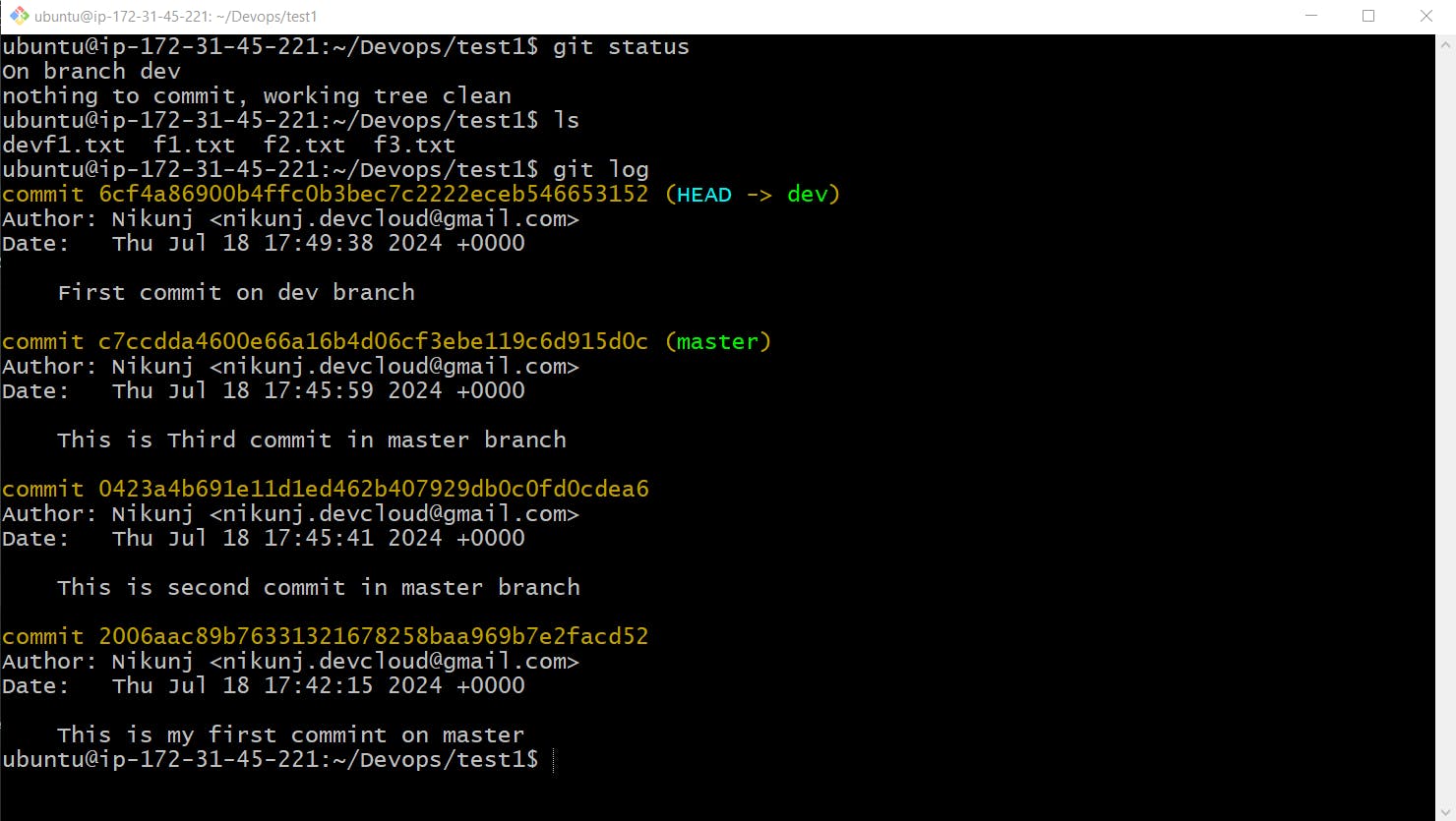
master.Commit your changes with a message reflecting the added feature
git checkout -b dev
Push Changes to GitHub:
Push your local commits to the repository on GitHub.
git push origin dev
Happy Learning 🚀
